AI Background Generator for Product Images (Guide)
Published date:
December 8, 2025
Author
Nick Hardy
Senior Product Designer
This toolkit allows you to automatically standardize product images to a uniform size and generate professional backgrounds using Adobe Photoshop's AI (Firefly).
Designed for high-volume workflows, this solution is capable of processing thousands of assets in a single batch, saving countless hours of manual work. Whether you have 50 or 5,000 images, this workflow handles the heavy lifting.
The process consists of two stages:
Preparation (Script): Resizing and centering the product (Customizable dimensions).
Generation (Action): Creating the background using AI.
Step 1: Prepare Images (JSX Script)
The script takes your raw product photos, creates a 370x500 px canvas, places the product in the center, and saves the result as a PNG with a transparent background. If you need a different size (e.g., 1000x1000 for Instagram or 2000x3000 for a catalog), simply edit the numbers in lines 5 and 6 of the code (targetWidth and targetHeight).
How to use:
Download the script file ResizeAndCenter.jsx (Click "Download Project File above").
Open Photoshop.
Go to File -> Scripts -> Browse...
Select the downloaded script file.
In the dialog box, select the images you want to process.
Offset Settings: The script will ask: "How many pixels to shift the image?".
Enter 0 to keep the item strictly in the center.
Enter a positive number (e.g., 20) to move the item down.
Enter a negative number (e.g., -20) to move the item up.
Wait for the process to finish. The script will automatically create an exported folder in the same location as your original files.
Step 2: Install the Action
The .atn file contains the recorded workflow for the AI generation. You only need to install this once.
Download the action file AI_BG_Generate.atn.
Open the Actions panel in Photoshop: Window -> Actions.
Click the menu icon (three lines ≡) in the top right of the panel and select Load Actions...
Select the downloaded .atn file. You will see a new set appear in your list (e.g., Add Background).
Step 3: Run Batch Generation
Now, apply the AI generation to all prepared images at once.
Go to File -> Automate -> Batch...
Configure the settings as follows:
Play:
Set: Select the Action Set you loaded in Step 2.
Action: Select the specific action (e.g., "Generative Fill" or "Generate Background").
Source: Select Folder.
Choose...: Select the exported folder created in Step 1.
Click OK.
Photoshop will open each file, generate the background based on the "Soft Background" prompt1, and save the result.
Step 4: Quality Control & Cleanup
Since AI generation varies, checking the results is essential.
Open the folder with the final images.
Rename: Delete the word "copy" from filenames if Photoshop added it during the batch save.
Review: Check for visual artifacts or weird hallucinations. Delete any bad results.
Fixing Issues:
Move the failed images to a separate folder.
Run the Batch process again on just these files. AI generates unique results every time, so the second attempt is often successful.
Manual Fix: If an image fails repeatedly (usually ~5% of cases), open it manually and adjust the Generative Fill prompt or generate new variations.
Real-World Applications: Who Needs This Tool?
While this script is powerful for any designer, it is a game-changer for industries that rely on high-volume visual content. Here is how different sectors can leverage this automated workflow.
1. Digital Advertising & Performance Marketing
In the world of paid traffic (Facebook Ads, Google Display, Native networks), ad fatigue is the enemy. To keep Click-Through Rates (CTR) high, marketers need to test dozens of visual variations daily.
Rapid A/B Testing: Instead of manually designing one background, generate 50 variations of the same product in minutes to see which color palette or setting performs best.
Format Adaptation: Quickly resize your "Hero Product" into square formats for carousels or vertical formats for Stories, ensuring your brand looks professional across every placement.
Scale Creative Production: Produce high-end marketing assets for massive inventory lists without increasing your design budget.
2. Digital Entertainment & Game Library Management
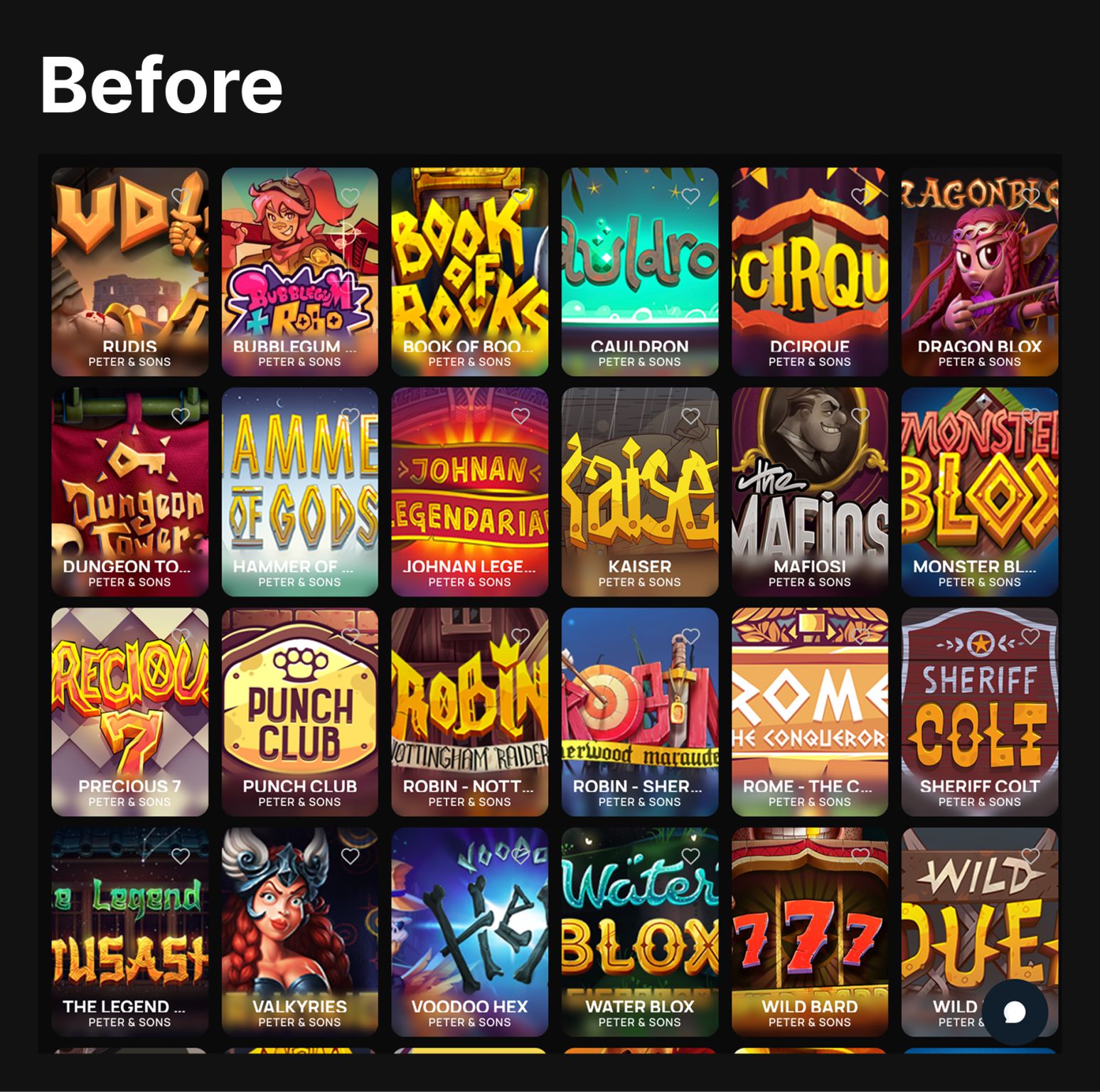
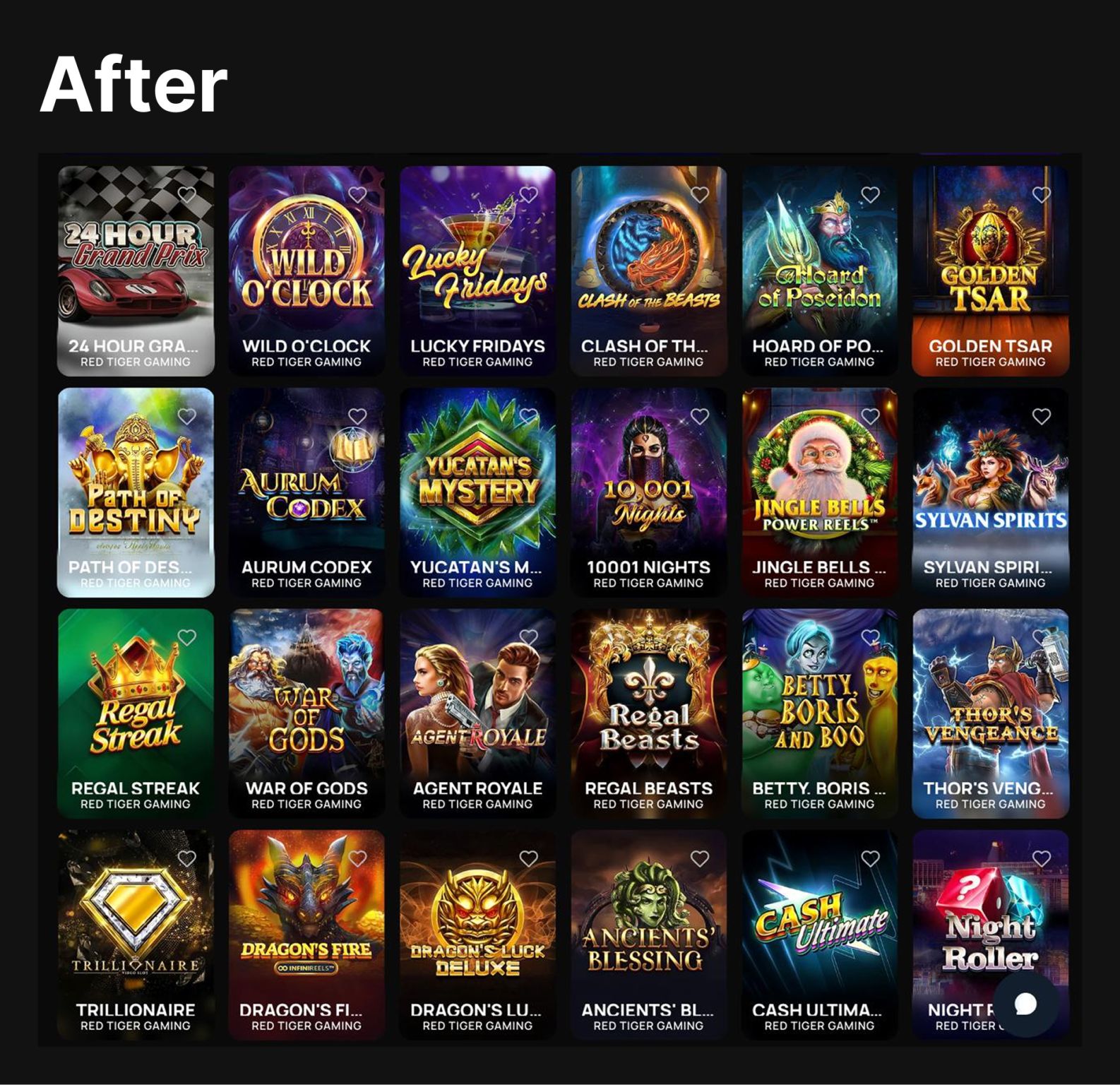
For platforms managing thousands of titles (such as mobile app stores, streaming services, or online game lobbies), visual consistency is critical for user experience. A messy grid of mismatched thumbnails can lower engagement.
Unified UI/UX: Standardize thousands of game logos or character assets into a cohesive library. Ensure every thumbnail has the same padding, alignment, and thematic background style.
Thematic Lobbies: Instantly generate backgrounds that match specific genres (e.g., "Neon City" for sci-fi titles or "Green Felt" for classic table games) to create an immersive browsing experience.
Fast Onboarding: When adding new providers or game packs, process the incoming assets immediately to match your platform's existing visual standards.
3. Social Media Content Creation
Building a brand on Instagram, TikTok, or Pinterest requires a "lifestyle" aesthetic that white-background product photography simply cannot provide.
Elevated Aesthetics: Transform sterile e-commerce photos into engaging lifestyle content. Place your product on a "sunlit wooden table" or a "marble counter" to blend naturally with user-generated content in the feed.
Consistent Branding: Maintain a strict visual identity across thousands of posts by using the same Generative Fill prompts (e.g., specific lighting or color tones) for every batch.
Thumbnail Optimization: Create eye-catching covers for Reels and video content that encourage clicks and profile visits.
4. Seasonal Marketing & E-commerce Events
Updating a catalog for major sales events (Black Friday, Christmas, Valentine's Day) traditionally requires expensive photoshoots or weeks of manual editing.
Instant Catalog Refreshes: Re-run your existing product images through the script with seasonal prompts. Turn a standard catalog into a "Winter Wonderland" collection or a "Summer Sale" showcase in a single afternoon.
Event-Specific Landing Pages: Create dedicated visual themes for flash sales without permanently altering your source files.
Reduced Time-to-Market: Launch holiday campaigns weeks ahead of competitors by automating the visual production process.
By clicking 'Accept all cookies', you agree to storing cookies on your device to enhance site navigation, analyze site usage and assist in our marketing efforts as outlined in our Cookie Policy.